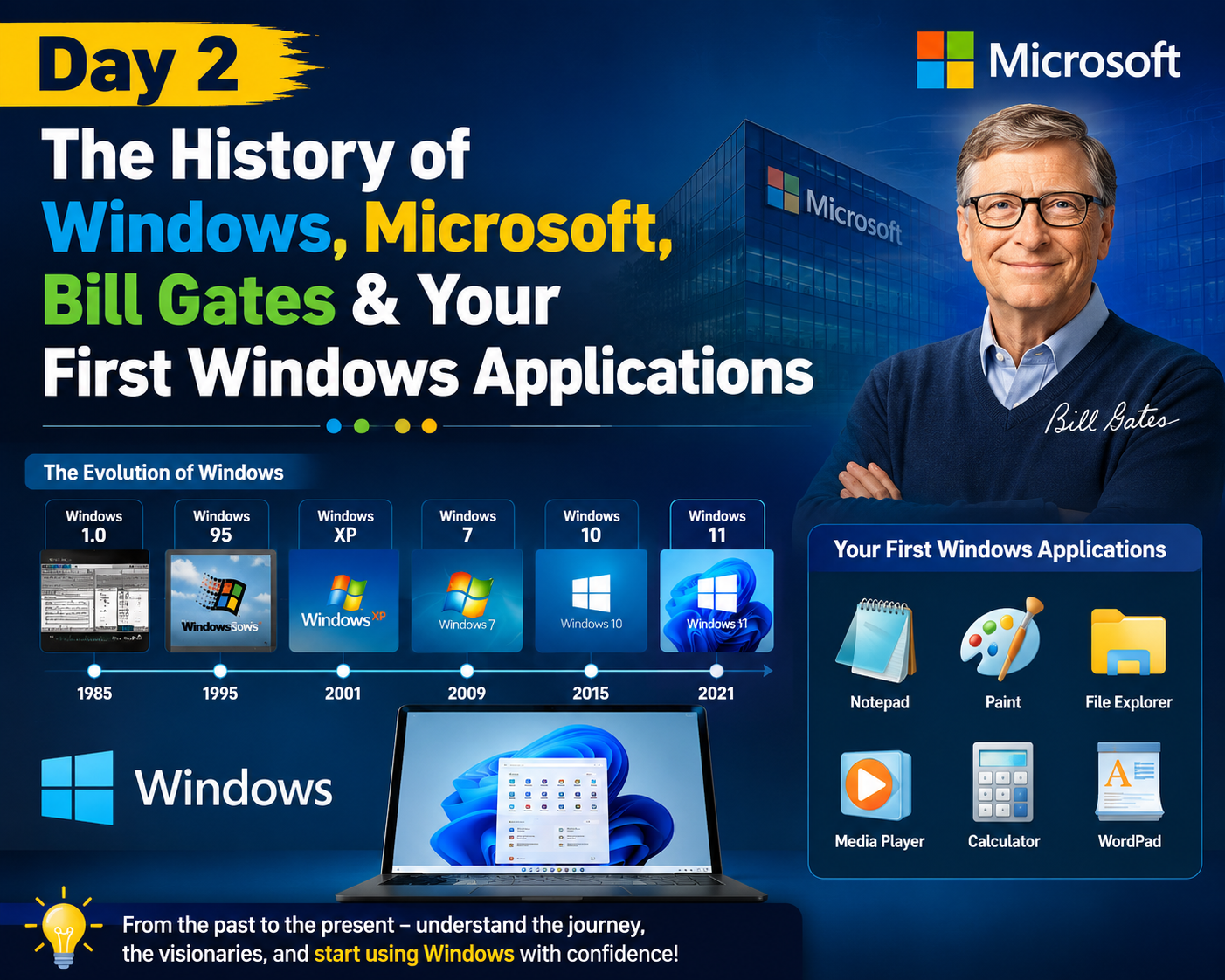
SEO Title: Windows & Microsoft History Day 2 | Bill Gates, MS-DOS & Windows Basics Explained Meta Description: Day 2 guide covering the history of Microsoft, Bill Gates, why Windows became inevitable, key milestones, plus Windows Desktop, MS Paint, Notepad & Wordpad basics. Suggested Category: Computer Basics / IT Training Suggested Tags: Windows history, Microsoft history, Bill Gates, MS-DOS, Windows basics, MS Paint, Notepad, Wordpad, CSC course, IT basics for beginners
Introduction
On Day 1, we covered how computers evolved and how they process information. Today, we go one level up — to the Operating System that most of you use every single day: Windows. We’ll trace where it came from, why Microsoft became the giant it is today, and then get hands-on with the Windows Desktop and its core applications: MS Paint, Notepad, and Wordpad.
1. What is an Operating System (OS)?
An Operating System is software that acts as a bridge between the computer’s hardware and the user. It manages hardware resources, runs applications, and provides the interface you interact with.
Common examples of operating systems:
- Windows
- macOS
- Linux
- Android
2. History of Microsoft
Microsoft was founded in 1975 by Bill Gates and Paul Allen.
- Their first product was Altair BASIC, a programming language interpreter for one of the earliest personal computers, the Altair 8800.
- The real turning point came in 1980, when Microsoft struck a deal with IBM to supply the operating system for IBM’s upcoming personal computer — this became MS-DOS.
3. Bill Gates — Brief Profile
- Co-founder of Microsoft alongside Paul Allen
- His vision was famously summarized as: “a computer on every desk and in every home.”
- In later years, Gates shifted his focus to philanthropy through the Bill & Melinda Gates Foundation, working on global health, education, and poverty reduction.
4. Why Microsoft/Windows Became Inevitable
Several strategic factors made Windows the dominant operating system worldwide:
- IBM PC + MS-DOS bundling gave Microsoft instant, mass-scale distribution across the personal computer market.
- Backward compatibility meant businesses that invested in Windows-based systems and software stayed locked into upgrading within the same ecosystem rather than switching.
- Aggressive OEM licensing — nearly every PC manufacturer pre-installed Windows, making it the default choice for consumers.
- The Office Suite (Word, Excel, PowerPoint) became the corporate standard, creating a powerful network effect — once everyone used it, everyone had to use it.
5. The “Unfair Advantage” — How One Deal Changed Everything
One of the most talked-about moments in tech history is IBM’s decision not to demand exclusivity over MS-DOS.
- This non-exclusive licensing deal let Microsoft license DOS to other PC manufacturers too — not just IBM.
- It is widely regarded as Microsoft’s single biggest structural advantage, allowing the company to grow independently of any one hardware partner.
- Combined with being an early mover in enterprise software and building a strong developer ecosystem around its APIs and the
.exestandard, Microsoft created deep ecosystem lock-in that competitors struggled to break.
6. Notable Milestones & Years in Windows History
| Year | Milestone |
|---|---|
| 1981 | MS-DOS launched alongside the IBM PC |
| 1985 | Windows 1.0 released |
| 1990 | Windows 3.0 — Microsoft’s first huge commercial success |
| 1995 | Windows 95 launched, bundled with Internet Explorer (later led to an antitrust case) |
| 2001 | Windows XP released — one of the most widely used OS versions for years |
| Present | Windows 11, with deep cloud integration (OneDrive, Copilot) |
7. Windows Desktop Basics
- The first screen of Windows is called the Desktop.
- Small pictures on the Desktop are called Icons.
- The long bar at the bottom of the screen is the Taskbar.
- The Start Menu gives access to programs and settings.
Permanent Icons
My Computer (Shortcut: Windows + E) Gives access to System Files, Folders, Drives, and Control Panel (Settings).
Recycle Bin Used to store deleted or unwanted files temporarily.
8. Windows Applications
The core built-in applications every beginner should know:
- Calculator
- MS Paint
- Notepad
- Wordpad
MS Paint
MS Paint is mainly used for mouse practice and basic drawing.
- File Extension:
.bmp(Bitmap)- Example:
First.bmp→ First is the filename, bmp is the extension
- Example:
Steps to Open MS Paint: Start → Run → Mspaint → Press Enter
File Menu Shortcuts (Alt + F):
- New (
Ctrl + N) — Opens a blank file/new documentFile Menu → New - Open (
Ctrl + O) — Opens an existing fileFile Menu → Open → Select My Documents or Desktop → Select the File → Click Open - Save (
Ctrl + S) — Stores the picture permanentlyFile Menu → Save → Select Desktop → Type Filename → Click Save - Save As (
F12) — Copies or backs up the fileFile Menu → Save As → Select My Documents → Type Filename → Click Save
MS Paint is also used to draw pictures, set the Windows background, and send images via email.
Notepad
Notepad is used to type simple documents and letters.
- File Extension:
.txt(Text Document)
Wordpad
Wordpad is used to type documents, letters, and statements — without calculation features.
- File Extension:
.rtf(Rich Text Format)
Difference Between Notepad & Wordpad
| Feature | Notepad | Wordpad |
|---|---|---|
| Toolbar | Not available | Available (Standard & Formatting) |
| Ruler | Not available | Available |
| Formatting options | Limited | Full formatting available |
| File Extension | .txt | .rtf |
9. File Management Basics
- Document — Shows all recently opened files.
- Windows Explorer — Used to organize files and folders.
- Find/Search — Used to search for a particular type of file or folder.
- Alt + F4 — Closes the current application.
Types of Calculator
- Standard Calculator
- Scientific Calculator
Common Programs Opened via Start → Run
iexplore— Internet Explorercalc— Calculatornotepad— Notepadwordpad— Wordpadmspaint— MS Paint
10. File Extensions — Why They Matter
A file extension tells the computer (and the user) what type of file it is and which application should open it.
Extensions covered so far:
.bmp— MS Paint (Bitmap image).txt— Notepad (Text document).rtf— Wordpad (Rich Text Format)
Modern extensions every beginner should also know:
.docx— Microsoft Word document.pdf— Portable Document Format.jpg— Image file.exe— Executable/program file
Key Takeaways from Day 2
- Windows runs on top of an Operating System that bridges hardware and the user
- Microsoft was founded in 1975 by Bill Gates and Paul Allen; the MS-DOS deal with IBM in 1980 changed everything
- A non-exclusive licensing deal with IBM gave Microsoft its biggest “unfair advantage”
- Windows evolved through key milestones: MS-DOS (1981) → Windows 1.0 (1985) → Windows 95 (1995) → Windows XP (2001) → Windows 11 (present)
- The Windows Desktop, Icons, Taskbar, and Start Menu form the core interface
- MS Paint (
.bmp), Notepad (.txt), and Wordpad (.rtf) are the essential beginner applications, each with distinct features and use cases
This wraps up our two-day foundational series — from the birth of the computer to the operating system running it. Next: hands-on practice sessions with each application covered above.