Introduction
In this tutorial, we’ll build a simple Number Guessing Game using HTML and JavaScript. This project is perfect for beginners as it covers fundamental programming concepts like variables, functions, conditional logic, DOM manipulation, and user interaction.
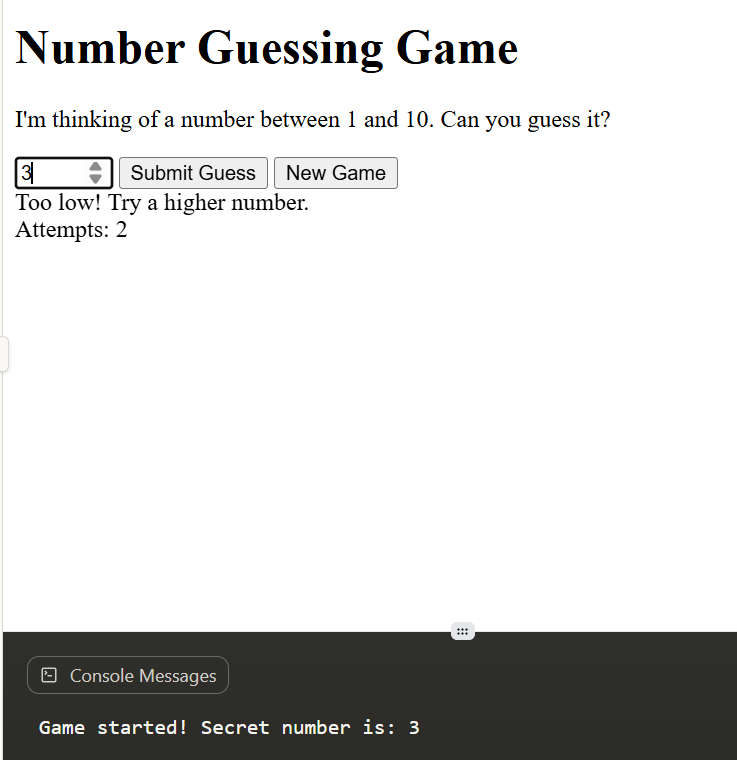
What we’ll build:
- A game where the computer picks a random number (1-10)
- Player guesses and receives feedback
- Attempt counter to track guesses
- Reset functionality for new games
Prerequisites: Basic understanding of HTML and JavaScript
Step 1: Setting Up the HTML Structure
Let’s start by creating the basic HTML skeleton for our game.
<!DOCTYPE html>
<html lang="en">
<head>
    <meta charset="UTF-8">
    <meta name="viewport" content="width=device-width, initial-scale=1.0">
    <title>Number Guessing Game</title>
</head>
<body>
    <h1>Number Guessing Game</h1>
    <p>I'm thinking of a number between 1 and 10. Can you guess it?</p>

    <!-- We'll add more elements here -->

</body>
</html>
What we did: • Created a basic HTML5 document structure with proper DOCTYPE and meta tags • Added a title and instructions to explain the game to players • Set up the foundation where we’ll add our game elements
Step 2: Adding Input Elements and Buttons
Now let’s add the interactive elements that players will use to play the game.
<body>
    <h1>Number Guessing Game</h1>
    <p>I'm thinking of a number between 1 and 10. Can you guess it?</p>

    <!-- Input field for player's guess -->
    <input type="number" id="guessInput" placeholder="Enter your guess" min="1" max="10">

    <!-- Game control buttons -->
    <button onclick="checkGuess()">Submit Guess</button>
    <button onclick="resetGame()">New Game</button>

</body>
What we added: • Input field: Number type with min/max attributes to restrict input to 1-10 range • Submit button: Calls checkGuess() function when clicked • Reset button: Calls resetGame() function to start a new game • ID attribute: Allows JavaScript to access the input field later
Step 3: Creating Display Areas for Game Feedback
Add div elements where we’ll display game messages and status.
<body>
    <h1>Number Guessing Game</h1>
    <p>I'm thinking of a number between 1 and 10. Can you guess it?</p>

    <input type="number" id="guessInput" placeholder="Enter your guess" min="1" max="10">
    <button onclick="checkGuess()">Submit Guess</button>
    <button onclick="resetGame()">New Game</button>

    <!-- Display areas for game feedback -->
    <div id="result"></div>
    <div id="attempts"></div>
    <div id="gameStatus"></div>

</body>
What we added: • result div: Will show “too high”, “too low”, or “correct” messages • attempts div: Will display the current number of attempts • gameStatus div: Will show congratulations or game over messages • Each div has a unique ID for JavaScript access
Step 4: Setting Up JavaScript Variables
Now let’s start adding JavaScript. We’ll begin by setting up the game variables.
<script>
    // Game variables
    let randomNumber = Math.floor(Math.random() * 10) + 1;
    let attemptCount = 0;
    let gameWon = false;
</script>
What each variable does: • randomNumber: Stores the secret number using Math.random() for random generation • attemptCount: Keeps track of how many guesses the player has made • gameWon: Boolean flag to prevent further guesses after winning • Math.floor(): Rounds down to nearest integer, Math.random(): generates 0-0.999, +1: shifts range to 1-10
Step 5: Creating the Main Game Logic Function
Let’s build the core function that handles player guesses.
<script>
    // Game variables
    let randomNumber = Math.floor(Math.random() * 10) + 1;
    let attemptCount = 0;
    let gameWon = false;

    // Function to check the player's guess
    function checkGuess() {
        // Get player's guess from input
        const playerGuess = parseInt(document.getElementById('guessInput').value);

        // Get references to display elements
        const resultDiv = document.getElementById('result');
        const attemptsDiv = document.getElementById('attempts');
        const gameStatusDiv = document.getElementById('gameStatus');
    }
</script>
What we’re doing: • parseInt(): Converts the input string to an integer number • document.getElementById(): Accesses HTML elements by their ID • const variables: Store references to DOM elements for easy manipulation • Set up the function structure that will contain our game logic
Step 6: Adding Input Validation
Inside the checkGuess() function, let’s add validation to ensure proper input.
function checkGuess() {
    const playerGuess = parseInt(document.getElementById('guessInput').value);
    const resultDiv = document.getElementById('result');
    const attemptsDiv = document.getElementById('attempts');
    const gameStatusDiv = document.getElementById('gameStatus');

    // Validate input
    if (isNaN(playerGuess) || playerGuess < 1 || playerGuess > 10) {
        resultDiv.innerHTML = "Please enter a valid number between 1 and 10!";
        return;
    }

    // If game is already won, don't allow more guesses
    if (gameWon) {
        resultDiv.innerHTML = "Game is over! Click 'New Game' to play again.";
        return;
    }
}
Input validation logic: • isNaN(): Checks if the input is “Not a Number” • Range check: Ensures number is between 1 and 10 • Game state check: Prevents guessing after winning • return statement: Exits function early if validation fails • innerHTML: Updates the content of HTML elements
Step 7: Implementing the Core Game Logic
Now let’s add the main comparison logic that makes the game work.
function checkGuess() {
    // ... previous validation code ...

    // Increment attempt counter
    attemptCount++;

    // Check the guess using if/else logic
    if (playerGuess === randomNumber) {
        resultDiv.innerHTML = "🎉 Correct! You guessed it!";
        gameStatusDiv.innerHTML = "Congratulations! You won the game!";
        gameWon = true;
    } else if (playerGuess < randomNumber) {
        resultDiv.innerHTML = "Too low! Try a higher number.";
    } else {
        resultDiv.innerHTML = "Too high! Try a lower number.";
    }

    // Display number of attempts
    attemptsDiv.innerHTML = "Attempts: " + attemptCount;

    // Clear the input field for next guess
    document.getElementById('guessInput').value = '';
}
Game logic breakdown: • attemptCount++: Increments the counter each time a guess is made • Strict equality (===): Compares player guess with the random number • Conditional feedback: Provides “too high”, “too low”, or “correct” messages • Game state update: Sets gameWon to true when player succeeds • Input clearing: Empties the input field for the next guess
Step 8: Creating the Reset Game Function
Let’s add functionality to start a new game without refreshing the page.
// Function to reset the game
function resetGame() {
    randomNumber = Math.floor(Math.random() * 10) + 1;
    attemptCount = 0;
    gameWon = false;

    // Clear all display elements
    document.getElementById('result').innerHTML = '';
    document.getElementById('attempts').innerHTML = '';
    document.getElementById('gameStatus').innerHTML = '';
    document.getElementById('guessInput').value = '';

    console.log("New game started! Secret number is: " + randomNumber);
}
Reset functionality: • New random number: Generates a fresh secret number for the new game • Reset counters: Sets attempt count back to 0 and gameWon to false • Clear displays: Removes all previous messages from the screen • Console logging: Helps with debugging (shows the secret number in browser console) • Complete reset: Returns the game to its initial state
Step 9: Adding Keyboard Support
Let’s make the game more user-friendly by allowing Enter key to submit guesses.
// Allow Enter key to submit guess
document.getElementById('guessInput').addEventListener('keypress', function(event) {
    if (event.key === 'Enter') {
        checkGuess();
    }
});
Keyboard enhancement: • addEventListener(): Attaches an event listener to the input field • keypress event: Detects when any key is pressed while input is focused • event.key: Property that tells us which key was pressed • Enter key detection: Calls checkGuess() function when Enter is pressed • Improved UX: Players don’t need to click the button every time
Step 10: Adding Debug Information
Finally, let’s add some helpful console output for development and testing.
// Initialize game
console.log("Game started! Secret number is: " + randomNumber);
Debug features: • Console output: Shows the secret number in browser’s developer console • Development aid: Helps test the game logic without guessing randomly • Learning tool: Students can verify the game is working correctly • Production note: In a real game, you’d remove this to maintain the challenge
Complete Code
Here’s the final, complete code for our Number Guessing Game:
<!DOCTYPE html>
<html lang="en">
<head>
    <meta charset="UTF-8">
    <meta name="viewport" content="width=device-width, initial-scale=1.0">
    <title>Number Guessing Game</title>
</head>
<body>
    <h1>Number Guessing Game</h1>
    <p>I'm thinking of a number between 1 and 10. Can you guess it?</p>

    <input type="number" id="guessInput" placeholder="Enter your guess" min="1" max="10">
    <button onclick="checkGuess()">Submit Guess</button>
    <button onclick="resetGame()">New Game</button>

    <div id="result"></div>
    <div id="attempts"></div>
    <div id="gameStatus"></div>

    <script>
        // Game variables
        let randomNumber = Math.floor(Math.random() * 10) + 1;
        let attemptCount = 0;
        let gameWon = false;

        // Function to check the player's guess
        function checkGuess() {
            const playerGuess = parseInt(document.getElementById('guessInput').value);
            const resultDiv = document.getElementById('result');
            const attemptsDiv = document.getElementById('attempts');
            const gameStatusDiv = document.getElementById('gameStatus');

            // Validate input
            if (isNaN(playerGuess) || playerGuess < 1 || playerGuess > 10) {
                resultDiv.innerHTML = "Please enter a valid number between 1 and 10!";
                return;
            }

            // If game is already won, don't allow more guesses
            if (gameWon) {
                resultDiv.innerHTML = "Game is over! Click 'New Game' to play again.";
                return;
            }

            // Increment attempt counter
            attemptCount++;

            // Check the guess using if/else logic
            if (playerGuess === randomNumber) {
                resultDiv.innerHTML = "🎉 Correct! You guessed it!";
                gameStatusDiv.innerHTML = "Congratulations! You won the game!";
                gameWon = true;
            } else if (playerGuess < randomNumber) {
                resultDiv.innerHTML = "Too low! Try a higher number.";
            } else {
                resultDiv.innerHTML = "Too high! Try a lower number.";
            }

            // Display number of attempts
            attemptsDiv.innerHTML = "Attempts: " + attemptCount;

            // Clear the input field for next guess
            document.getElementById('guessInput').value = '';
        }

        // Function to reset the game
        function resetGame() {
            randomNumber = Math.floor(Math.random() * 10) + 1;
            attemptCount = 0;
            gameWon = false;

            // Clear all display elements
            document.getElementById('result').innerHTML = '';
            document.getElementById('attempts').innerHTML = '';
            document.getElementById('gameStatus').innerHTML = '';
            document.getElementById('guessInput').value = '';

            console.log("New game started! Secret number is: " + randomNumber);
        }

        // Allow Enter key to submit guess
        document.getElementById('guessInput').addEventListener('keypress', function(event) {
            if (event.key === 'Enter') {
                checkGuess();
            }
        });

        // Initialize game
        console.log("Game started! Secret number is: " + randomNumber);
    </script>
</body>
</html>
Key Learning Points
Programming Concepts Covered: • Variables: Storing and managing game state • Functions: Organizing code into reusable blocks • Conditional Logic: Making decisions with if/else statements • DOM Manipulation: Interacting with HTML elements • Event Handling: Responding to user interactions • Input Validation: Ensuring data quality and user experience
Best Practices Demonstrated: • Code Organization: Separating HTML structure from JavaScript logic • User Experience: Providing clear feedback and multiple interaction methods • Error Handling: Validating input and managing game states • Debugging: Using console.log for development assistance
Testing Your Game
- Save the code as an HTML file (e.g.,
number-game.html) - Open in browser by double-clicking the file
- Test different scenarios: correct guesses, high/low guesses, invalid input
- Check console: Open browser dev tools (F12) to see the secret number
- Try keyboard controls: Use Enter key to submit guesses
Possible Enhancements
Once you’ve mastered this basic version, try adding: • Difficulty levels with different number ranges • High score system tracking fewest attempts • Visual styling with CSS • Sound effects for feedback • Hint system after multiple wrong guesses
This project provides an excellent foundation for understanding JavaScript fundamentals while creating something fun and interactive!