
What is MongoDB?
MongoDB is a NoSQL database that is designed to store and retrieve large amounts of data quickly. Unlike traditional relational databases that use tables and rows (like MySQL or PostgreSQL), MongoDB uses a flexible, document-oriented approach to store data in JSON-like format called BSON (Binary JSON).
MongoDB Example:
In MongoDB, a collection (similar to a table) might contain multiple documents (similar to rows), like this:
{
   "name": "John Doe",
   "age": 29,
   "address": {
      "street": "123 Main St",
      "city": "New York"
   },
   "hobbies": ["reading", "hiking"]
}
This example shows a document where fields like name, age, address, and hobbies are stored in a flexible, nested structure.
What is NoSQL?
NoSQL stands for “Not Only SQL” and refers to a broad class of databases that differ from traditional relational databases (SQL databases) in their approach to data storage, retrieval, and scalability.
Characteristics of NoSQL Databases:
- Non-relational: NoSQL databases do not use the traditional table-based relational model. They are designed for distributed data storage and flexible data modeling.
- Flexible Schema: NoSQL databases allow for flexible or schema-less data models, meaning each record or document can have a different structure.
- Scalability: Most NoSQL databases are designed to scale horizontally across many servers, making them ideal for handling large, distributed datasets.
- High Performance: NoSQL databases are optimized for fast read/write operations and can handle high traffic and big data volumes.
- Data Models: NoSQL databases support various data models like document-based, key-value pairs, column-based, and graph-based models.
Types of NoSQL Databases:
- Document Store (e.g., MongoDB, CouchDB):
- Stores data as JSON-like documents.
- Flexible schema.
- Ideal for semi-structured data.
- Key-Value Store (e.g., Redis, DynamoDB):
- Data is stored as key-value pairs.
- Highly scalable, often used for caching and session management.
- Column Store (e.g., Cassandra, HBase):
- Data is stored in columns instead of rows.
- Optimized for read-heavy operations.
- Graph Database (e.g., Neo4j):
- Designed for data that involves relationships between entities.
- Great for social networks, recommendation engines, and fraud detection.
Differences Between SQL and NoSQL
| Feature | SQL (Relational) Databases | NoSQL Databases |
|---|---|---|
| Schema | Fixed schema, predefined tables | Flexible, schema-less or dynamic schema |
| Data Model | Relational (tables, rows, columns) | Document, key-value, column, graph |
| Scalability | Vertical scaling (add more CPU/RAM to a single server) | Horizontal scaling (add more servers) |
| Transactions | ACID compliance (strong consistency) | Eventual consistency (for some NoSQL types) |
| Query Language | SQL (Structured Query Language) | Varies; MongoDB uses its own query language |
| Use Cases | Structured data, complex queries | Unstructured or semi-structured data, real-time applications |
When to Use MongoDB or NoSQL?
- Flexible Data Models: When you have semi-structured or unstructured data that doesn’t fit well into rows and columns (e.g., JSON).
- Scalability: When your application needs to handle high traffic and requires horizontal scaling across multiple servers.
- Big Data: NoSQL databases like MongoDB are better suited for handling large, distributed datasets in real-time.
- Rapid Development: If your project requires quick iteration and changing data structures, MongoDB’s flexible schema is ideal.
Key Features of MongoDB:
- Document-Oriented: Data is stored in flexible documents (BSON format), which allows you to store various types of data structures, including nested objects and arrays.
- Schema-less: Unlike relational databases, MongoDB does not enforce a strict schema, allowing documents in a collection to have different fields and structures.
- Scalability: MongoDB supports horizontal scaling via sharding, making it easy to distribute data across multiple servers.
- High Performance: MongoDB is optimized for read/write operations and can handle large volumes of data efficiently.
- Replication: MongoDB supports replica sets to ensure high availability and data redundancy.
- Indexing: MongoDB allows you to create indexes on fields to improve query performance.
Summary
- MongoDB is a NoSQL database designed to store flexible, document-based data and is ideal for applications requiring scalability and high performance.
- NoSQL refers to a category of databases that differ from relational models, providing flexible schemas, distributed data storage, and scalability options.
MongoDB and other NoSQL databases are excellent choices for modern applications where flexibility and scale are key priorities.
MongoDB Installation & Environment Setup on Windows
Step 1: Download MongoDB Community Edition
- Go to MongoDB Download Page: Visit the official MongoDB website: https://www.mongodb.com/try/download/community
- Select Version & Platform:
- Choose the appropriate version (latest is recommended).
- Ensure that Windows is selected as the platform.
- Select MSI as the package.
- Download the MongoDB MSI installer.
Step 2: Install MongoDB
- Run the Installer:
- After downloading, double-click the
.msifile to start the installation.
- After downloading, double-click the
- Choose Setup Type:
- Choose Complete setup for full installation (recommended).
- Select Service Configuration (optional):
- On the “Service Configuration” page, choose to run MongoDB as a service. This means MongoDB will start automatically when Windows starts.
- Keep default settings for the service name (MongoDB).
- Install MongoDB Compass (Must):
- You may be prompted to install MongoDB Compass, a graphical tool for interacting with MongoDB. This is recommended for beginners.
- Complete Installation:
- Click Install and wait for the installation to finish.
Step 3: Set Up MongoDB Environment Variables
#1 Locate MongoDB Bin Directory
- Go to the folder where MongoDB was installed (default:
C:\Program Files\MongoDB\Server\[version]\bin).
#2 Add to Path Environment Variable:
- Open System Properties: Right-click This PC → Properties → Advanced system settings → Environment Variables.
- Under System variables, find Path and click Edit.
- Click New and add the path to the MongoDB
binfolder (e.g.,C:\Program Files\MongoDB\Server\[version]\bin). - Click OK to save the changes.
Step 4: Verify Installation
- Open Command Prompt:
- Press Win + R, type cmd, and press Enter.
- Verify MongoDB Version:
- Type mongo –version and press Enter to check if MongoDB is installed correctly.
Step 5: MongoDB Configuration (Optional)
- Default Data Directory:
- MongoDB stores data in the default directory: C:\data\db.
- If this directory doesn’t exist, create it manually:
- Configuration File:
- You can create a custom MongoDB configuration file (mongod.cfg) to specify your own setting
Step 6: MongoDB Compass (GUI Tool)
Open MongoDB Compass:
MongoDB Compass provides a graphical interface for managing and querying MongoDB data.
If you opted not to install Compass during setup, download it from MongoDB Compass.
Run MongoDB Compass:
After installation, launch Compass.
Click Connect to interact with your MongoDB instance.
Important Components
- MongoDB Server (Original Source or Location)
- MongoDB Shell (Command Line) – Interactor 1
- MongoDB Compass (GUI) – Interactor 2
- MongoDB Atlas (GUI from Cloud)
Our Installed Community Edition Software will take care of all the above in 1 go.
Now MongoDB is installed, and your environment is set up for development. You can use the MongoDB shell or MongoDB Compass to manage your databases.
MongoDB Commands Overview
1. MongoDB Components
- Community Edition: Free version of MongoDB for general use.
- Shell: Command-line interface to interact with MongoDB.
- Compass: Graphical User Interface to interact with MongoDB.
- Database Tools: Utilities for database management, like backups and imports.
- Atlas: Platform to deploy, run, and scale MongoDB in the cloud or Fully managed MongoDB in the cloud.
2. Create New Connection
- Select the new connection button in the centre of the screen or on the Left Hand Side Panel
- Give a Name for the Connection and select any color to identify
- Select “Save & Connect” (recommended)
- Open the Connection & Select Mongo Shell Button
Default Database Setup
show dbs: Displays all databases.- Inbuilt databases:
admin,config,local
- Inbuilt databases:
use appdb:Switches to or creates a new database namedappdb.show dbs: Lists databases again, reflecting any new additions.
3. Inserting Data into Collections
Inserting a Single Document
db.users.insertOne({ name: "Rephel" });- db: Refers to the current database.
- users: Name of the collection in the database.
- insertOne(): Inserts one document (record) into the collection.
Inserting a Document with Multiple Fields
db.users.insertOne({
  name: "Rayhan",
  age: 16,
  address: { street: "Market Street", pincode: 600075 },
  hobbies: ["coding", "cooking"]
});- name: String data type.
- age: Numeric data type.
- address: Embedded JSON object with
streetandpincodefields. - hobbies: List/Array with string elements.
Inserting Multiple Documents
db.users.insertMany([{ name: "csc" }, { name: "Python" }, { name: "React", age: 34 }]);- insertMany(): Inserts multiple documents in one go.
- Each object inside the array
{}is a separate document.
4. Retrieving Data
Retrieve All Documents
db.users.find();- find(): Retrieves all documents from the
userscollection.
Query Specific Document
db.users.find({ name: "Rayhan" });- Finds and retrieves the document(s) where
nameis"Rayhan".
5. Advanced Query Operations
Limit Results
db.users.find().limit(2);- limit(): Restricts the number of documents retrieved to 2.
Sorting Results
db.users.find().sort({ name: 1 });- sort({name: 1}): Sorts documents by the
namefield in ascending order (1means ascending).
db.users.find().sort({ name: -1 }).limit(3);- sort({name: -1}): Sorts documents in descending order by
name. - limit(3): Retrieves the first 3 documents after sorting.
Skip and Limit Combined
db.users.find().skip(2).limit(2);- skip(2): Skips the first 2 documents.
- limit(2): Retrieves the next 2 documents after skipping.
6. Practical Usage Examples
db.users.find().sort({ name: 1 }).limit(3);- This command sorts the documents by name in ascending order and limits the output to the first 3 documents.
db.users.find({ name: "Rayhan" });- Retrieves all documents where the
namefield matches"Rayhan".
Summary of Key Commands
- show dbs: List all databases.
- use [database]: Switch/create a new database.
- insertOne(): Insert a single document.
- insertMany(): Insert multiple documents.
- find(): Retrieve documents.
- sort(): Sort documents by field.
- limit(): Restrict the number of returned documents.
- skip(): Skip a set number of documents in the result.
Task
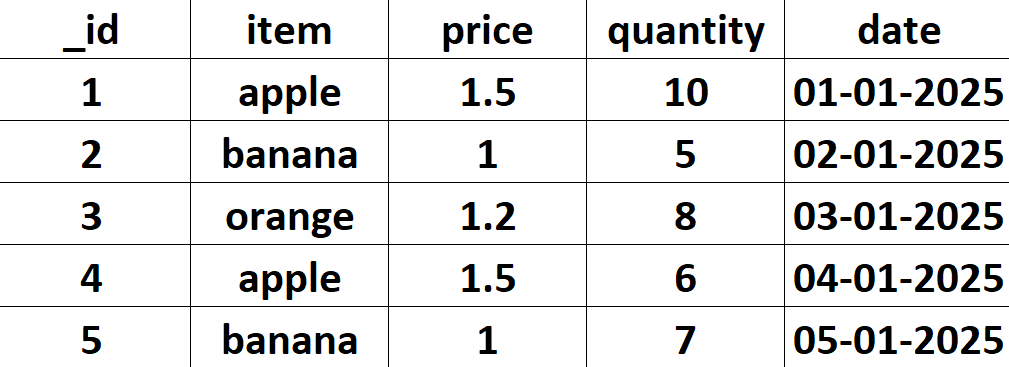
#1. Create the below collection named “sales1”
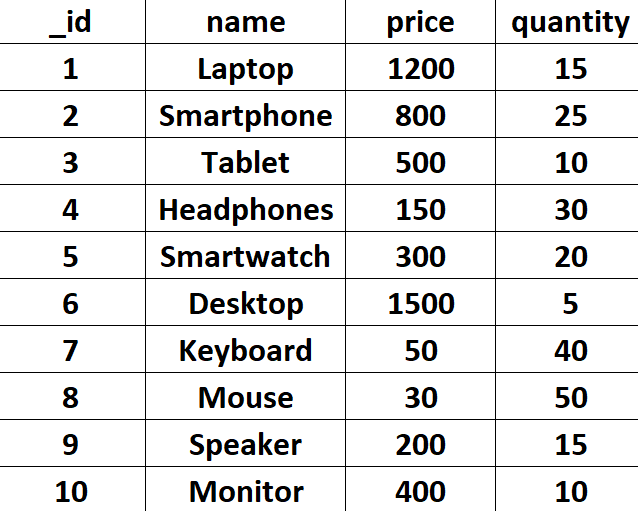
#2 Create the below collection named “gadgets”
Class Example:
Sample Dataset 1: Gadgets
[
  { "_id": 1, "name": "Laptop", "price": 1200, "quantity": 15 },
  { "_id": 2, "name": "Smartphone", "price": 800, "quantity": 25 },
  { "_id": 3, "name": "Tablet", "price": 500, "quantity": 10 },
  { "_id": 4, "name": "Headphones", "price": 150, "quantity": 30 },
  { "_id": 5, "name": "Smartwatch", "price": 300, "quantity": 20 },
  { "_id": 6, "name": "Desktop", "price": 1500, "quantity": 5 },
  { "_id": 7, "name": "Keyboard", "price": 50, "quantity": 40 },
  { "_id": 8, "name": "Mouse", "price": 30, "quantity": 50 },
  { "_id": 9, "name": "Speaker", "price": 200, "quantity": 15 },
  { "_id": 10, "name": "Monitor", "price": 400, "quantity": 10 }
]
Set of Questions focusing solely on find(), sort(), limit(), and skip(), without involving conditional queries:
Questions on find()
1 . Basic Retrieval: Retrieve all documents in the “gadgets” collection.
db.gadgets.find()2. Field Filtering: Retrieve only the name and quantity of all gadgets, excluding _id.
db.gadgets.find({}, { name: 1, quantity: 1, _id: 0 })3. Partial Field Retrieval: Retrieve only the price and name fields for all gadgets.
db.gadgets.find({}, { price: 1, name: 1, _id: 0 })Questions on sort()
4. Sort by Name: Sort the gadgets alphabetically by their name in ascending order.
db.gadgets.find().sort({ name: 1 })5. Sort by Quantity: Sort the gadgets by quantity in descending order.
db.gadgets.find().sort({ quantity: -1 })6. Multiple Fields Sorting: Sort the gadgets by price in ascending order, and for gadgets with the same price, sort them by name in descending order.
db.gadgets.find().sort({ price: 1, name: -1 })Questions on limit() and skip()
7. Limit Results: Retrieve the first 3 gadgets in the collection.
db.gadgets.find().limit(3)8. Skip Results: Skip the first 5 gadgets and retrieve the remaining ones.
db.gadgets.find().skip(5)9. Limit and Skip: Skip the first 3 gadgets and retrieve the next 4 gadgets.
db.gadgets.find().skip(3).limit(4)10. Combine Sort, Skip, and Limit: Sort the gadgets by quantity in ascending order, skip the first 2, and retrieve the next 5.
db.gadgets.find().sort({ quantity: 1 }).skip(2).limit(5)These questions emphasize how to retrieve and manipulate the documents in a MongoDB collection using the basic query methods without introducing any conditions.
Steps to Create a JSON File from Copied Content
- Copy the Content:
- Highlight and copy the JSON content.
- Paste into a Text Editor:
- Open a text editor like Notepad (Windows), TextEdit (Mac), or any code editor like VS Code or Sublime Text.
- Paste the JSON content.
- Validate JSON Structure:
- Ensure the JSON is valid by checking the format (e.g., enclosing objects in
{}or arrays in[]). - If necessary, use a JSON validator tool like jsonlint.com to fix any syntax errors.
- Ensure the JSON is valid by checking the format (e.g., enclosing objects in
- Save the File:
- Save the file with a
.jsonextension (e.g.,gadgets.json). - Choose UTF-8 encoding for compatibility.
- Save the file with a
Steps to Import the JSON File into MongoDB Compass
- Open MongoDB Compass:
- Launch MongoDB Compass and connect to your MongoDB instance.
- Select the Database:
- Click on the desired database or create a new one if it doesn’t exist (e.g.,
myDatabase).
- Click on the desired database or create a new one if it doesn’t exist (e.g.,
- Choose the Collection:
- Select an existing collection (e.g.,
gadgets) or create a new collection by clicking Create Collection.
- Select an existing collection (e.g.,
- Import Data:
- In the Collection View, click on the “…” menu in the top-right corner of the toolbar or the “Add Data” button.
- Choose “Import File”.
- Select the JSON File:
- Navigate to the saved JSON file (e.g.,
gadgets.json) and select it.
- Navigate to the saved JSON file (e.g.,
- Configure Import Settings:
- Set the File Type to
JSON. - (Optional) Review any additional options.
- Set the File Type to
- Start Import:
- Click the Import button to load the data into the collection.
- Verify the Import:
- Check the collection to confirm that the documents have been successfully added.
These steps should help you easily create a JSON file from web content and import it into MongoDB Compass.
Tasks:
Get the Dataset from Notes Server or Download the dataset from GitHib or Create a JSON file by copying the below dataset &
Import it in mongoDB Compass
https://github.com/REPHEL-0101/mongodb
Sample Dataset 2: AI Books
[
  { "_id": 1, "title": "Introduction to Machine Learning", "category": "Machine Learning", "year": 2018, "rating": 4.5 },
  { "_id": 2, "title": "Deep Learning for Computer Vision", "category": "Deep Learning", "year": 2019, "rating": 4.2 },
  { "_id": 3, "title": "Natural Language Processing Basics", "category": "NLP", "year": 2017, "rating": 4.0 },
  { "_id": 4, "title": "Reinforcement Learning Fundamentals", "category": "Reinforcement Learning", "year": 2020, "rating": 4.7 },
  { "_id": 5, "title": "Neural Networks and Deep Learning", "category": "Deep Learning", "year": 2016, "rating": 4.3 },
  { "_id": 6, "title": "Computer Vision Applications", "category": "Computer Vision", "year": 2021, "rating": 4.6 },
  { "_id": 7, "title": "Advanced Topics in Natural Language Processing", "category": "NLP", "year": 2022, "rating": 4.8 },
  { "_id": 8, "title": "Generative Adversarial Networks", "category": "Deep Learning", "year": 2019, "rating": 4.4 },
  { "_id": 9, "title": "Machine Learning for Healthcare", "category": "Machine Learning", "year": 2020, "rating": 4.1 },
  { "_id": 10, "title": "Robotics and AI Integration", "category": "Robotics", "year": 2021, "rating": 4.6 },
  { "_id": 11, "title": "AI Ethics and Governance", "category": "Ethics", "year": 2022, "rating": 4.2 },
  { "_id": 12, "title": "Deep Reinforcement Learning", "category": "Reinforcement Learning", "year": 2018, "rating": 4.5 },
  { "_id": 13, "title": "Machine Translation Techniques", "category": "NLP", "year": 2019, "rating": 4.3 },
  { "_id": 14, "title": "Self-Supervised Learning Methods", "category": "Deep Learning", "year": 2020, "rating": 4.7 },
  { "_id": 15, "title": "Explainable AI Models", "category": "AI Ethics", "year": 2021, "rating": 4.4 },
  { "_id": 16, "title": "Graph Neural Networks", "category": "Graph Learning", "year": 2022, "rating": 4.6 },
  { "_id": 17, "title": "AI in Finance", "category": "Finance", "year": 2017, "rating": 4.0 },
  { "_id": 18, "title": "Image Recognition with CNNs", "category": "Computer Vision", "year": 2018, "rating": 4.3 },
  { "_id": 19, "title": "Machine Learning Operations (MLOps)", "category": "Machine Learning", "year": 2019, "rating": 4.5 },
  { "_id": 20, "title": "Fairness in Machine Learning", "category": "Ethics", "year": 2020, "rating": 4.2 },
  { "_id": 21, "title": "AI-driven Personalization", "category": "Personalization", "year": 2021, "rating": 4.6 },
  { "_id": 22, "title": "Robotics Process Automation (RPA)", "category": "Robotics", "year": 2022, "rating": 4.8 },
  { "_id": 23, "title": "Quantum Machine Learning", "category": "Quantum Computing", "year": 2018, "rating": 4.4 },
  { "_id": 24, "title": "Deep Learning in Healthcare", "category": "Healthcare", "year": 2019, "rating": 4.1 },
  { "_id": 25, "title": "Cognitive Computing", "category": "Cognitive Computing", "year": 2020, "rating": 4.7 }
]
Questions for Sample Dataset 2 – AI Books:
- Retrieve documents where the year is greater than 2019.
- Find documents with a rating less than or equal to 4.2.
- Show documents where the category is “Deep Learning”.
- List documents with a year equal to 2020.
- Find documents with a rating greater than 4.5.
- Retrieve documents where the category is not “Machine Learning”.
- Show documents with a year less than 2018.
- List documents with a rating greater than or equal to 4.6.
- Find documents where the category is “Ethics” and the year is greater than or equal to 2020.
- Show documents with a rating less than 4.3 and a year greater than 2018.
Sample Dataset 3: Chennai Social Media
[
  { "_id": 1, "username": "marina_king", "age": 28, "city": "Marina Beach", "status": "active", "followers_count": 1200 },
  { "_id": 2, "username": "anna_salai_guru", "age": 35, "city": "Anna Salai", "status": "inactive", "followers_count": 800 },
  { "_id": 3, "username": "kapaleeswarar_fanatic", "age": 32, "city": "Kapaleeswarar Temple", "status": "active", "followers_count": 1500 },
  { "_id": 4, "username": "guindy_explorer", "age": 24, "city": "Guindy National Park", "status": "active", "followers_count": 600 },
  { "_id": 5, "username": "marina_sunrise", "age": 29, "city": "Marina Beach", "status": "active", "followers_count": 1800 },
  { "_id": 6, "username": "marina_sunset", "age": 26, "city": "Marina Beach", "status": "inactive", "followers_count": 700 },
  { "_id": 7, "username": "marina_lover", "age": 31, "city": "Marina Beach", "status": "active", "followers_count": 2100 },
  { "_id": 8, "username": "mylapore_musician", "age": 34, "city": "Mylapore", "status": "inactive", "followers_count": 950 },
  { "_id": 9, "username": "adyar_artist", "age": 27, "city": "Adyar", "status": "active", "followers_count": 1300 },
  { "_id": 10, "username": "egmore_enthusiast", "age": 33, "city": "Egmore", "status": "inactive", "followers_count": 750 },
  { "_id": 11, "username": "annanagar_traveler", "age": 30, "city": "Anna Nagar", "status": "active", "followers_count": 2000 },
  { "_id": 12, "username": "besant_nagar_foodie", "age": 36, "city": "Besant Nagar", "status": "active", "followers_count": 2400 },
  { "_id": 13, "username": "t_nagar_trendsetter", "age": 25, "city": "T. Nagar", "status": "inactive", "followers_count": 600 },
  { "_id": 14, "username": "velachery_voyager", "age": 29, "city": "Velachery", "status": "active", "followers_count": 1700 },
  { "_id": 15, "username": "guindy_green", "age": 38, "city": "Guindy National Park", "status": "active", "followers_count": 2100 },
  { "_id": 16, "username": "marina_morning_walker", "age": 26, "city": "Marina Beach", "status": "active", "followers_count": 1500 },
  { "_id": 17, "username": "velachery_vegan", "age": 32, "city": "Velachery", "status": "inactive", "followers_count": 900 },
  { "_id": 18, "username": "adyar_art_lover", "age": 29, "city": "Adyar", "status": "active", "followers_count": 1800 },
  { "_id": 19, "username": "kapaleeswarar_worshipper", "age": 31, "city": "Kapaleeswarar Temple", "status": "active", "followers_count": 2200 },
  { "_id": 20, "username": "guindy_nature_lover", "age": 27, "city": "Guindy National Park", "status": "inactive", "followers_count": 700 },
  { "_id": 21, "username": "besant_nagar_beach_bum", "age": 34, "city": "Besant Nagar", "status": "active", "followers_count": 2300 },
  { "_id": 22, "username": "anna_salai_shopper", "age": 28, "city": "Anna Salai", "status": "active", "followers_count": 1600 },
  { "_id": 23, "username": "egmore_explorer", "age": 35, "city": "Egmore", "status": "inactive", "followers_count": 800 },
  { "_id": 24, "username": "anna_nagar_nature_lover", "age": 26, "city": "Anna Nagar", "status": "active", "followers_count": 1900 },
  { "_id": 25, "username": "mylapore_music_maven", "age": 33, "city": "Mylapore", "status": "active", "followers_count": 2100 }
]
Questions for Sample Dataset 3 – Chennai Social Media:
- Retrieve documents where the city is “Marina Beach” and the status is “active”.
- Find documents where the age is less than 30 or the followers count is greater than 1000.
- Show documents where the status is either “active” or “inactive”.
- List documents where the city is not “Guindy National Park” or the age is greater than or equal to 30.
- Find documents where the status is “active” and the followers count is less than 500.
- Retrieve documents where the age is not equal to 26 and the city is “Besant Nagar”.
- Show documents where the status is not “inactive” or the followers count is less than 1000.
- List documents where the age is less than 25 and the city is “Anna Salai”.
- Find documents where the status is “active” and the age is greater than 30, or the followers count is less than 200.
- Show documents where the status is “active” and the followers count is greater than or equal to 2000, or the age is less than 28.
Update Command
updateOneOperation:db.users.find({age:34}): Retrieves all documents from theuserscollection where theageis 34.db.users.updateOne({name:'React'},{ $set: { age: 23 } } ): Updates a single document wherenameis ‘React’ by setting theagefield to 23.db.users.find(): Retrieves all documents from theuserscollection to view the changes.db.users.updateOne({name:'Mongo'},{ $set: { Ratings: 5 } }): Updates a single document wherenameis ‘Mongo’ by setting theRatingsfield to 5.db.users.updateOne({name:'Mongo'},{ $set: { Ratings: 5 } }, { upsert: true }): If a document withname‘Mongo’ doesn’t exist, this operation will insert a new document withnameas ‘Mongo’ andRatingsset to 5; otherwise, it updates the existing document.
updateManyOperation:db.users.updateMany({},{$inc: { salary: 25000 }}): Increments thesalaryfield by 25,000 for all documents in theuserscollection.db.users.updateMany({name:'Mongo'},{$inc: { salary: 1000 }}): Increments thesalaryfield by 1,000 for all documents where thenameis ‘Mongo’.
deleteOneOperation:db.users.deleteOne({name: 'Python'}): Deletes a single document wherenameis ‘Python’.
deleteManyOperation:db.users.deleteMany({age: 23}): Deletes all documents where theageis 23.
Query Operators
- Comparison Operators
- Logical Operators
- Element Operators
- Array Operators
- Evaluation Operators
- Geospatial Operators
sample dataset
[
{ "_id": 1, "name": "Laptop", "price": 1200, "quantity": 15 },
{ "_id": 2, "name": "Smartphone", "price": 800, "quantity": 25 },
{ "_id": 3, "name": "Tablet", "price": 500, "quantity": 10 },
{ "_id": 4, "name": "Headphones", "price": 150, "quantity": 30 },
{ "_id": 5, "name": "Smartwatch", "price": 300, "quantity": 20 },
{ "_id": 6, "name": "Desktop", "price": 1500, "quantity": 5 },
{ "_id": 7, "name": "Keyboard", "price": 50, "quantity": 40 },
{ "_id": 8, "name": "Mouse", "price": 30, "quantity": 50 },
{ "_id": 9, "name": "Speaker", "price": 200, "quantity": 15 },
{ "_id": 10, "name": "Monitor", "price": 400, "quantity": 10 }
]
1. Comparison Operators
1.1 $eq
- Description: Matches values that are equal to a specified value.
- Example Query: Find products with a price of $800.
db.products.find({ price: { $eq: 800 } }) { "_id": 2, "name": "Smartphone", "price": 800, "quantity": 25 }1.2 $ne
- Description: Matches values that are not equal to a specified value.
- Example Query: Find products with a quantity not equal to 10.
db.products.find({ quantity: { $ne: 10 } }) [ { "_id": 1, "name": "Laptop", "price": 1200, "quantity": 15 }, { "_id": 2, "name": "Smartphone", "price": 800, "quantity": 25 }, { "_id": 4, "name": "Headphones", "price": 150, "quantity": 30 }, { "_id": 5, "name": "Smartwatch", "price": 300, "quantity": 20 }, { "_id": 6, "name": "Desktop", "price": 1500, "quantity": 5 }, { "_id": 7, "name": "Keyboard", "price": 50, "quantity": 40 }, { "_id": 8, "name": "Mouse", "price": 30, "quantity": 50 }, { "_id": 9, "name": "Speaker", "price": 200, "quantity": 15 } ]1.3 $gt
- Description: Matches values that are greater than a specified value.
- Example Query: Find products with a price greater than $500.
db.products.find({ price: { $gt: 500 } }) [ { "_id": 1, "name": "Laptop", "price": 1200, "quantity": 15 }, { "_id": 2, "name": "Smartphone", "price": 800, "quantity": 25 }, { "_id": 6, "name": "Desktop", "price": 1500, "quantity": 5 }, { "_id": 9, "name": "Speaker", "price": 200, "quantity": 15 } ]1.4 $lt
- Description: Matches values that are less than a specified value.
- Example Query: Find products with a quantity less than 20.
db.products.find({ quantity: { $lt: 20 } }) [ { "_id": 1, "name": "Laptop", "price": 1200, "quantity": 15 }, { "_id": 3, "name": "Tablet", "price": 500, "quantity": 10 }, { "_id": 6, "name": "Desktop", "price": 1500, "quantity": 5 }1.5 $gte
- Description: Matches values that are greater than or equal to a specified value.
- Example Query: Find products with a price greater than or equal to $150.
db.products.find({ price: { $gte: 150 } } [ { "_id": 1, "name": "Laptop", "price": 1200, "quantity": 15 }, { "_id": 2, "name": "Smartphone", "price": 800, "quantity": 25 }, { "_id": 4, "name": "Headphones", "price": 150, "quantity": 30 }, { "_id": 5, "name": "Smartwatch", "price": 300, "quantity": 20 }, { "_id": 6, "name": "Desktop", "price": 1500, "quantity": 5 }, { "_id": 9, "name": "Speaker", "price": 200, "quantity": 15 }1.6 $lte
- Description: Matches values that are less than or equal to a specified value.
- Example Query: Find products with a quantity less than or equal to 15.
db.products.find({ quantity: { $lte: 15 } } [ { "_id": 1, "name": "Laptop", "price": 1200, "quantity": 15 }, { "_id": 3, "name": "Tablet", "price": 500, "quantity": 10 }, { "_id": 6, "name": "Desktop", "price": 1500, "quantity": 5 }, { "_id": 9, "name": "Speaker", "price": 200, "quantity": 15 } ]2. Logical Operators
Logical operators allow you to combine multiple conditions in MongoDB queries.
2.1 $and
- Description: Joins query clauses with a logical AND and returns documents that match all conditions.
- Example Query: Find products where the price is greater than $500 and the quantity is greater than 10.
db.products.find({ $and: [ { price: { $gt: 500 } }, { quantity: { $gt: 10 } } ] }) [ { "_id": 1, "name": "Laptop", "price": 1200, "quantity": 15 }, { "_id": 2, "name": "Smartphone", "price": 800, "quantity": 25 }, { "_id": 4, "name": "Headphones", "price": 150, "quantity": 30 }, { "_id": 5, "name": "Smartwatch", "price": 300, "quantity": 20 }, { "_id": 6, "name": "Desktop", "price": 1500, "quantity": 5 }2.2 $or
- Description: Joins query clauses with a logical OR and returns documents that match at least one condition.
- Example Query: Find products where the price is greater than $1000 or the quantity is less than 20.
db.products.find({ $or: [ { price: { $gt: 1000 } }, { quantity: { $lt: 20 } } ] }) [ { "_id": 1, "name": "Laptop", "price": 1200, "quantity": 15 }, { "_id": 2, "name": "Smartphone", "price": 800, "quantity": 25 }, { "_id": 6, "name": "Desktop", "price": 1500, "quantity": 5 }, { "_id": 9, "name": "Speaker", "price": 200, "quantity": 15 }2.3 $not
- Description: Inverts the effect of a query expression and returns documents that do not match the condition.
- Example Query: Find products where the price is not greater than $1000.
db.products.find({ price: { $not: { $gt: 1000 } } } [ { "_id": 2, "name": "Smartphone", "price": 800, "quantity": 25 }, { "_id": 3, "name": "Tablet", "price": 500, "quantity": 10 }, { "_id": 4, "name": "Headphones", "price": 150, "quantity": 30 }, { "_id": 5, "name": "Smartwatch", "price": 300, "quantity": 20 }, { "_id": 7, "name": "Keyboard", "price": 50, "quantity": 40 }, { "_id": 8, "name": "Mouse", "price": 30, "quantity": 50 }, { "_id": 9, "name": "Speaker", "price": 200, "quantity": 15 } ]2.4 $nor
- Description: Joins query clauses with a logical NOR and returns documents that fail to match all conditions.
- Example Query: Find products where neither the price is greater than $1000 nor the quantity is less than 20.
db.products.find({ $nor: [ { price: { $gt: 1000 } }, { quantity: { $lt: 20 } } ] }) [ { "_id": 2, "name": "Smartphone", "price": 800, "quantity": 25 }, { "_id": 4, "name": "Headphones", "price": 150, "quantity": 30 }, { "_id": 5, "name": "Smartwatch", "price": 300, "quantity": 20 }, { "_id": 7, "name": "Keyboard", "price": 50, "quantity": 40 }, { "_id": 8, "name": "Mouse", "price": 30, "quantity": 50 }3. Element Operators
Element operators are used to query based on the presence or type of a field.
3.1 $exists
- Description: Matches documents that contain the specified field.
- Example Query: Find products that have a
pricefield.
db.products.find({ price: { $exists: true } }) [ { "_id": 1, "name": "Laptop", "price": 1200, "quantity": 15 }, { "_id": 2, "name": "Smartphone", "price": 800, "quantity": 25 }, { "_id": 3, "name": "Tablet", "price": 500, "quantity": 10 }, { "_id": 4, "name": "Headphones", "price": 150, "quantity": 30 }, { "_id": 5, "name": "Smartwatch", "price": 300, "quantity": 20 }, { "_id": 6, "name": "Desktop", "price": 1500, "quantity": 5 }, { "_id": 7, "name": "Keyboard", "price": 50, "quantity": 40 }, { "_id": 8, "name": "Mouse", "price": 30, "quantity": 50 }, { "_id": 9, "name": "Speaker", "price": 200, "quantity": 15 }, { "_id": 10, "name": "Monitor", "price": 400, "quantity": 10 } ]3.2 $type
- Description: Selects documents where a field is of the specified type.
- Example Query: Find products where the
pricefield is a number.
db.products.find({ price: { $type: "number" } }) [ { "_id": 1, "name": "Laptop", "price": 1200, "quantity": 15 }, { "_id": 2, "name": "Smartphone", "price": 800, "quantity": 25 }, { "_id": 3, "name": "Tablet", "price": 500, "quantity": 10 }, { "_id": 4, "name": "Headphones", "price": 150, "quantity": 30 }, { "_id": 5, "name": "Smartwatch", "price": 300, "quantity": 20 }, { "_id": 6, "name": "Desktop", "price": 1500, "quantity": 5 }, { "_id": 7, "name": "Keyboard", "price": 50, "quantity": 40 }, { "_id": 8, "name": "Mouse", "price": 30, "quantity": 50 }, { "_id": 9, "name": "Speaker", "price": 200, "quantity": 15 }, { "_id": 10, "name": "Monitor", "price": 400, "quantity": 10 } ]4. Array Operators
Array operators help in querying and manipulating array fields.
Sample Dataset 4: Computer Courses
[
  {
    "_id": 1,
    "name": "Python Basics Course",
    "category": "python",
    "price": 2500,
    "tags": ["beginner", "coding", "logic"],
    "scores": [65, 78, 82],
    "duration": 30
  },
  {
    "_id": 2,
    "name": "Advanced Python Projects",
    "category": "python",
    "price": 5000,
    "tags": ["advanced", "project", "ai"],
    "scores": [88, 91, 95],
    "duration": 50
  },
  {
    "_id": 3,
    "name": "Java Fundamentals",
    "category": "java",
    "price": 3000,
    "tags": ["beginner", "oop", "logic"],
    "scores": [70, 75, 80],
    "duration": 35
  },
  {
    "_id": 4,
    "name": "Java Spring Boot",
    "category": "java",
    "price": 6000,
    "tags": ["backend", "framework"],
    "scores": [85, 90],
    "duration": 45
  },
  {
    "_id": 5,
    "name": "Tally Prime Basic",
    "category": "tally",
    "price": 2000,
    "tags": ["accounts", "beginner"],
    "scores": [68, 72, 74],
    "duration": 25
  },
  {
    "_id": 6,
    "name": "Tally GST Mastery",
    "category": "tally",
    "price": 3500,
    "tags": ["gst", "tax", "advanced"],
    "scores": [82, 87],
    "duration": 40
  },
  {
    "_id": 7,
    "name": "Excel Essentials",
    "category": "excel",
    "price": 1800,
    "tags": ["beginner", "office", "data"],
    "scores": [60, 70, 78],
    "duration": 20
  },
  {
    "_id": 8,
    "name": "Excel Advanced Functions",
    "category": "excel",
    "price": 3200,
    "tags": ["advanced", "formulas", "reporting"],
    "scores": [89, 92, 98],
    "duration": 45
  },
  {
    "_id": 9,
    "name": "HTML5 Basics",
    "category": "html",
    "price": 1500,
    "tags": ["markup", "web", "beginner"],
    "scores": [55, 65, 75],
    "duration": 20
  },
  {
    "_id": 10,
    "name": "HTML Templates Masterclass",
    "category": "html",
    "price": 2800,
    "tags": ["templates", "design"],
    "scores": [78, 82],
    "duration": 30
  },
  {
    "_id": 11,
    "name": "CSS Styling Basics",
    "category": "css",
    "price": 1500,
    "tags": ["design", "colors", "layout"],
    "scores": [62, 70],
    "duration": 25
  },
  {
    "_id": 12,
    "name": "CSS Flexbox & Grid",
    "category": "css",
    "price": 3000,
    "tags": ["layout", "advanced", "responsive"],
    "scores": [80, 88, 90],
    "duration": 40
  },
  {
    "_id": 13,
    "name": "MongoDB Beginner Course",
    "category": "mongodb",
    "price": 4000,
    "tags": ["database", "nosql", "beginner"],
    "scores": [69, 74, 78],
    "duration": 35
  },
  {
    "_id": 14,
    "name": "MongoDB Aggregation Mastery",
    "category": "mongodb",
    "price": 6500,
    "tags": ["database", "aggregation", "advanced"],
    "scores": [88, 93],
    "duration": 50
  },
  {
    "_id": 15,
    "name": "MySQL Basics",
    "category": "mysql",
    "price": 2500,
    "tags": ["database", "sql", "beginner"],
    "scores": [60, 68, 72],
    "duration": 30
  },
  {
    "_id": 16,
    "name": "MySQL Joins & Queries",
    "category": "mysql",
    "price": 4500,
    "tags": ["joins", "queries", "advanced"],
    "scores": [82, 85, 90],
    "duration": 45
  },
  {
    "_id": 17,
    "name": "Python Data Analysis",
    "category": "python",
    "price": 5200,
    "tags": ["data", "analysis", "pandas"],
    "scores": [75, 82, 89],
    "duration": 50
  },
  {
    "_id": 18,
    "name": "Java Backend Developer Pack",
    "category": "java",
    "price": 7500,
    "tags": ["backend", "api", "project"],
    "scores": [88, 90, 94],
    "duration": 60
  },
  {
    "_id": 19,
    "name": "Tally Payroll System",
    "category": "tally",
    "price": 3000,
    "tags": ["payroll", "hr", "accounts"],
    "scores": [77, 79, 83],
    "duration": 30
  },
  {
    "_id": 20,
    "name": "Excel Dashboard Workshop",
    "category": "excel",
    "price": 5000,
    "tags": ["dashboard", "charts", "data"],
    "scores": [92, 95],
    "duration": 50
  },
  {
    "_id": 21,
    "name": "HTML + CSS Frontend Pack",
    "category": "html",
    "price": 4200,
    "tags": ["frontend", "design", "responsive"],
    "scores": [78, 84, 88],
    "duration": 45
  },
  {
    "_id": 22,
    "name": "CSS Animation Techniques",
    "category": "css",
    "price": 2500,
    "tags": ["animation", "ui", "effects"],
    "scores": [72, 79],
    "duration": 30
  },
  {
    "_id": 23,
    "name": "MongoDB Performance Tuning",
    "category": "mongodb",
    "price": 7000,
    "tags": ["performance", "indexing"],
    "scores": [90, 94, 96],
    "duration": 55
  },
  {
    "_id": 24,
    "name": "MySQL Stored Procedures",
    "category": "mysql",
    "price": 5500,
    "tags": ["procedures", "functions"],
    "scores": [84, 87, 91],
    "duration": 40
  },
  {
    "_id": 25,
    "name": "Python Automation Scripting",
    "category": "python",
    "price": 4800,
    "tags": ["automation", "scripts", "project"],
    "scores": [81, 86, 90],
    "duration": 50
  }
]
4.1 $all
- Description: Matches arrays that contain all specified elements.
- Example Query: Find products where the
tagsarray contains both “red” and “blue”. - Expected Result: Depends on your actual dataset, which might not have a
tagsfield.
Q1:
Find courses whose tags include BOTH "beginner" and "coding".
db.products.find({ tags: { $all: ["beginner", "coding"] } })Q2:
Find documents that contain both "database" and "advanced" in tags.
db.products.find({ tags: { $all: ["database", "advanced"] } })4.2 $elemMatch
- Description: Matches documents with an array field containing at least one element that matches all specified criteria.
- Example Query: Find documents where the
scoresarray has an element greater than or equal to 80 and less than 90. - Expected Result: Depends on your actual dataset, which might not have a
scoresfield.
Q3:
Find courses where scores contain an element between 85 and 90.
db.products.find({ scores: { $elemMatch: { $gte: 85, $lte: 90 } } })Q4:
Find courses where scores contain a value ≥ 90 and < 95.
db.products.find({ scores: { $elemMatch: { $gte: 90, $lt: 95 } } })4.3 $size
- Description: Matches arrays with a specified number of elements.
- Example Query: Find products where the
tagsarray has exactly 3 elements. - Expected Result: Depends on your actual dataset, which might not have a
tagsfield.
Q5:
Find courses where tags have exactly 2 elements.
db.products.find({ tags: { $size: 2 } })Q6:
Find courses where scores array has exactly 3 marks.
db.products.find({ scores: { $size: 3 } })4.4 $in
- Description: Matches any of the values specified in an array.
- Example Query: Find products where the
tagsarray contains either “red” or “green”. - Expected Result: Depends on your actual dataset, which might not have a
tagsfield.
Q7:
Find courses whose tags include either "project" or "advanced".
db.products.find({ tags: { $in: ["project", "advanced"] } })Q8:
Find documents where category is either "python" or "java".
db.products.find({ category: { $in: ["python", "java"] } })4.5 $nin
- Description: Matches none of the values specified in an array.
- Example Query: Find products where the
tagsarray does not contain “red” or “green”. - Expected Result: Depends on your actual dataset, which might not have a
tagsfield.
Q9:
Find courses whose tags do NOT contain "beginner" or "design".
db.products.find({ tags: { $nin: ["beginner", "design"] } })Q10:
Find courses where category is NOT "tally" or "excel".
db.products.find({ category: { $nin: ["tally", "excel"] } })5. Evaluation Operators
Evaluation operators allow for various calculations and expressions within queries.
5.1 $expr
- Description: Allows the use of aggregation expressions within the query.
- Example Query: Find products where the
priceis greater than thequantity.
db.products.find({ $expr: { $gt: ["$price", "$quantity"] } }) [ { "_id": 1, "name": "Laptop", "price": 1200, "quantity": 15 }, { "_id": 2, "name": "Smartphone", "price": 800, "quantity": 25 }, { "_id": 6, "name": "Desktop", "price": 1500, "quantity": 5 }, { "_id": 9, "name": "Speaker", "price": 200, "quantity": 15 } ]5.2 $mod
- Description: Performs a modulo operation and selects documents with a specified result.
- Example Query: Find products where the
quantityis a multiple of 5.
db.products.find({ quantity: { $mod: [5, 0] } }) [ { "_id": 1, "name": "Laptop", "price": 1200, "quantity": 15 }, { "_id": 4, "name": "Headphones", "price": 150, "quantity": 30 }, { "_id": 7, "name": "Keyboard", "price": 50, "quantity": 40 }, { "_id": 8, "name": "Mouse", "price": 30, "quantity": 50 } ]5.3 $regex
- Description: Matches documents where the value of a field matches a specified regular expression.
- Example Query: Find products where the
namestarts with “S” (case-insensitive).
db.products.find({ name: { $regex: /^S/, $options: 'i' } }) [ { "_id": 2, "name": "Smartphone", "price": 800, "quantity": 25 }, { "_id": 5, "name": "Smartwatch", "price": 300, "quantity": 20 }, { "_id": 9, "name": "Speaker", "price": 200, "quantity": 15 } ]5.4 $text
- Description: Performs a text search on fields indexed with a text index.
- Example Query: Find documents containing the word “Laptop” in a text-indexed field.
db.products.find({ $text: { $search: "Laptop" } }) [ { "_id": 1, "name": "Laptop", "price": 1200, "quantity": 15 } ]These operators are crucial for performing a wide range of queries in MongoDB, allowing for complex and flexible data retrieval.
5.1 $expr
Q1 — Find courses where price per hour is more than ₹100
db.products.find({
  $expr: { $gt: ["$price", { $multiply: ["$duration", 100] }] }
})
Q2 — Find courses where the duration is greater than number of tags × 10
db.products.find({
  $expr: {
    $gt: [
      "$duration",
      { $multiply: [{ $size: "$tags" }, 10] }
    ]
  }
})
5.2 $mod
Q3 — Find courses whose duration is a multiple of 10 hours
db.products.find({
  duration: { $mod: [10, 0] }
})
Q4 — Find courses where duration % 15 = 0 (15-hour batch cycles)
db.products.find({
  duration: { $mod: [15, 0] }
})
5.3 $regex
Q5 — Find courses where name contains the word “Python”
db.products.find({
  name: { $regex: "Python", $options: "i" }
})
Q6 — Find courses where category starts with the letter ‘m’
db.products.find({
  category: { $regex: /^m/i }
})
5.4 $text
(Make sure you created a text index first)
db.products.createIndex({ name: "text", category: "text" })
Q7 — Find courses related to “database”
db.products.find({
  $text: { $search: "database" }
})
Q8 — Search for courses containing the word “Advanced”
db.products.find({
  $text: { $search: "Advanced" }
})
6. Geospatial Operators
Geospatial operators in MongoDB are used to work with geographical data. These operators allow you to query documents based on location information, supporting various types of spatial queries.
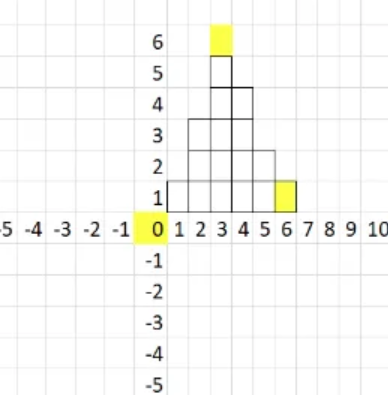
6.1 $geoWithin
- Description: Finds documents with geospatial data that exists entirely within a specified shape, such as a polygon or circle.
- Example Query: Find documents where the
locationfield is within the specified polygon. - Explanation: This query selects documents where the
locationfield is inside the polygon defined by the given coordinates.
db.places.find(
{ location:
{ $geoWithin:
{ $geometry:
{ type: "Polygon",
coordinates: [
[ [0, 0], [3, 6], [6, 1], [0, 0] ]]
} } } })
6.2 $geoIntersects
- Description: Finds documents whose geospatial data intersects with a specified shape, such as a point or polygon.
- Example Query: Find documents where the
locationfield intersects with the specified point. - Explanation: This query selects documents where the
locationfield intersects with the specified point[5, 5].
db.places.find({ location: { $geoIntersects: { $geometry: { type: "Point", coordinates: [5, 5] } } } })6.3 $near
- Description: Returns documents ordered by their proximity to a specified point, with an optional maximum distance.
- Example Query: Find documents with the
locationfield near the point[50, 50]within a maximum distance of 1000 meters. - Explanation: This query returns documents sorted by distance from the point
[50, 50], only including those within 1000 meters of that point.
db.places.find({ location: { $near: { $geometry: { type: "Point", coordinates: [50, 50] }, $maxDistance: 1000 } } })6.4 $nearSphere
- Description: Similar to
$near, but calculates distances using spherical geometry to account for the Earth’s curvature. - Example Query: Find documents with the
locationfield near the point[50, 50]within a maximum distance of 1000 meters, considering the Earth’s curvature. - Explanation: This query returns documents sorted by distance from the point
[50, 50], using spherical geometry to account for the Earth’s curvature, and only includes those within 1000 meters.
db.places.find({ location: { $nearSphere: { $geometry: { type: "Point", coordinates: [50, 50] }, $maxDistance: 1000 } } })Summary
$geoWithin: Selects documents where the location is entirely within a specified shape (e.g., polygon).$geoIntersects: Selects documents where the location intersects with a specified shape (e.g., point).$near: Finds documents ordered by proximity to a point with an optional maximum distance (flat geometry).$nearSphere: Similar to$near, but calculates distances us- ing spherical geometry to consider Earth’s curvature.
These operators are useful for performing spatial queries in applications involving location-based data, such as maps and geofencing.
Aggregation Pipeline
Let me break this down into simple terms:
Let’s use a scenario of a popular chain of biriyani restaurants across Tamil Nadu.
Think of MongoDB aggregation pipeline like the steps in making biriyani. Just like how you prep ingredients, marinate, cook, and garnish in specific stages, aggregation pipeline processes data in stages where each stage transforms the data in some way.
Let’s use a real-life example of “Raja’s Biriyani Chain” with branches across Tamil Nadu.
First, let’s look at some sample data:
// Orders Collection
{
  "_id": 1,
  "branch": "Chennai Central",
  "date": "2025-02-01",
  "customer": "Karthik",
  "items": [
    { "dish": "Chicken Biriyani", "quantity": 2, "price": 180 },
    { "dish": "Mutton Biriyani", "quantity": 1, "price": 280 }
  ],
  "payment": "UPI"
}

// More sample orders...
{
  "_id": 2,
  "branch": "Coimbatore RS Puram",
  "date": "2025-02-01",
  "customer": "Priya",
  "items": [
    { "dish": "Veg Biriyani", "quantity": 3, "price": 140 }
  ],
  "payment": "Cash"
}
Now, let’s understand each main aggregation stage with our biriyani shop example:
$match: Think of this as filtering orders
// Get all orders from Chennai branches
{ $match: { branch: /^Chennai/ } }
This is like saying “give me only Chennai orders” – just like how you’d filter out veg biriyani orders from non-veg ones.
$group: This combines similar data together
// Group sales by branch
{
  $group: {
    _id: "$branch",
    totalSales: { $sum: "$items.price" }
  }
}
This is like grouping all daily sales by each branch – similar to how at day end, each branch counts their total sales.
$sort: Arranges data in order
// Sort branches by total sales
{ $sort: { totalSales: -1 } }
Like arranging branches from highest to lowest sales.
$project: Selects only the fields you want
// Show only branch name and total sales
{
  $project: {
    branch: 1,
    totalSales: 1,
    _id: 0
  }
}
Similar to how in your final report you might only want to see branch name and sales, not all other details.
Let’s put it all together with a real business question:
“Which Chennai branches had sales over ₹10,000 today, ordered by sales?”
db.orders.aggregate([
  // Stage 1: Filter Chennai branches only
  {
    $match: {
      branch: /^Chennai/,
      date: "2025-02-01"
    }
  },

  // Stage 2: Calculate total sales per branch
  {
    $group: {
      _id: "$branch",
      totalSales: {
        $sum: {
          $reduce: {
            input: "$items",
            initialValue: 0,
            in: {
              $add: [
                "$$value",
                { $multiply: ["$$this.quantity", "$$this.price"] }
              ]
            }
          }
        }
      }
    }
  },

  // Stage 3: Filter branches with > ₹10,000 sales
  {
    $match: {
      totalSales: { $gt: 10000 }
    }
  },

  // Stage 4: Sort by sales (highest first)
  {
    $sort: { totalSales: -1 }
  }
])
Think of this pipeline like:
- First, filter and keep only Chennai branches (like separating Chennai branch receipts)
- Then, add up all sales for each branch (like counting money per branch)
- Keep only branches that made more than ₹10,000 (like identifying top-performing branches)
- Arrange them from highest to lowest sales (like ranking branches)
Each stage’s output becomes the input for the next stage, just like in biriyani preparation where each step’s result moves to the next step.
Some other common stages you might use:
$unwind: Breaks down arrays (like splitting a bulk order into individual items)$lookup: Combines data from different collections (like matching orders with customer details)$limit: Restricts the number of results (like showing only top 5 branches)
The beauty of aggregation pipelines is that you can combine these stages in any order you need, just like how you might adjust your biriyani recipe steps based on what you’re trying to achieve.